Rental Registration Details
Parks & Rec > Rental Registration > Search > Edit
For completed registrations, the Rental Registration Details page provides a summary of the registration, including the rental number, status, amount paid or invoiced, and the rental facility or item details. It also provides an email icon next to the Renter field. Clicking the icon opens an email from the user's default email client addressed to the name on the link.
If a renter has made a partial payment, the entry for the rental contains two rows: one for the partial payment and one for the total invoice.
When you hover your pointer over the amount Paid and Invoiced fields, the program displays receipt details, if available.
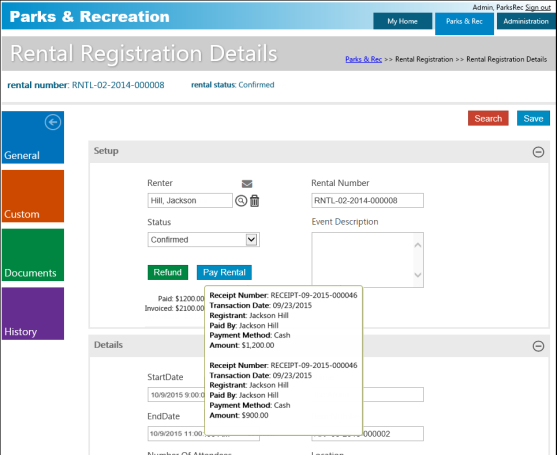
To refund paid amounts directly from the Rental Registration Details page, click Refund to initiate the refund process. Refund options vary according to the refund permissions assigned to your user role.
Clicking Refund opens the Rental Refund Fees dialog, which provides the available refund options. The Fee Amount Refunded field displays the fee amount paid and available for refund. You may edit this amount to one that is less than the defined amount.
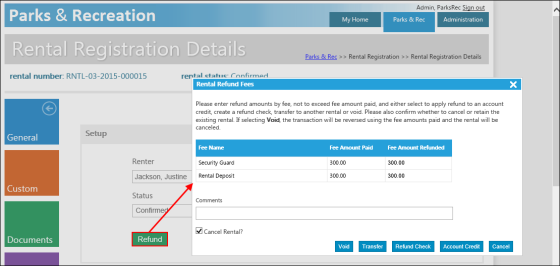
Refund options:
- Void—Reverses the transaction and cancels the registration. If you select this option, a confirmation message displays, confirming the void of the entire transaction. If you continue, the action voids the entire transaction and removes all rental registrations associated with that transaction.
- Transfer—Transfers the refund amount to a new registration. This option is not available when the Cancel Rental check box is not selected.
- Refund Check—Submits the refund to check processing.
- Account Credit—Stores the credit balance with the contact record to be used for a rental or class registration. This option is available only if the pay method defined for the fee includes the Account Credit option.
The Cancel Rental check box directs the program to cancel the registration and issue the refund. If you clear this check box, the Rental Refund Fees dialog refreshes to remove the Transfer option. In this case, the refund is processed, but the rental registration remains active.
If you use a credit to pay for a rental and the rental fee is less than the credit, the activity fee is deducted from the account credit and the remaining amount is refunded. If you register for an activity using the citizen portal and the credit balance is not enough to cover the activity fee, you may select the split pay option and define the payment amount for the outstanding balance.
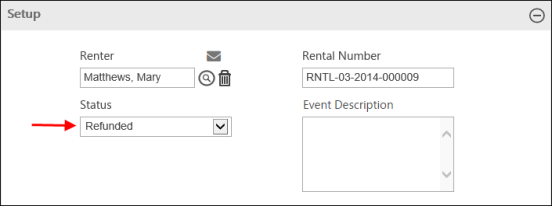
When you complete the refund, the Status entry on the Rental Registration Details page resets to Refunded, and the Refund button no longer is available.
The Rental Registration Details page also lets you complete payment on a rental. To initiate the registration payment process directly from the Rental Registration Details page, click Pay Rental:
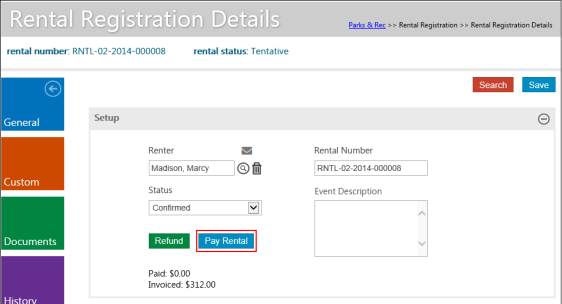
Clicking this button displays the Summary dialog, where you may select or cancel add-on items for the rental.
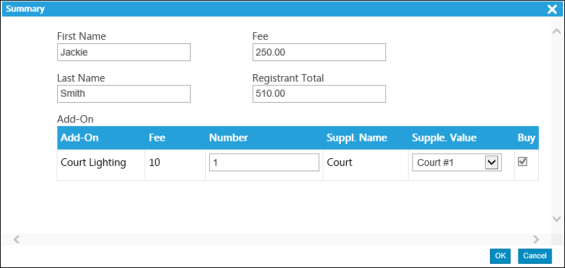
When you click OK, the Payment dialog opens.
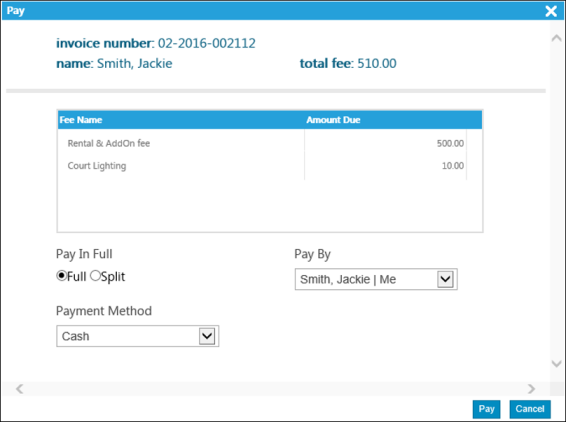
Verify the payment details and click OK.
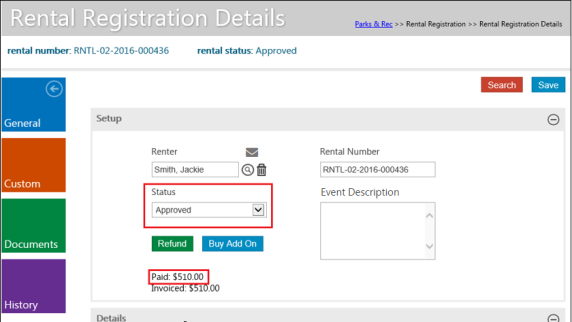
You are returned to the Rental Registration Details page, and the Status of the rental is updated to Approved.
When you complete a rental registration for which you issue an invoice, the Registration Details page provides the View Invoice option. Clicking this option opens the Invoice Details page showing the invoiced item or items and letting you make payments for outstanding amounts. Registrants may make continuous payments until the invoice is paid in full.
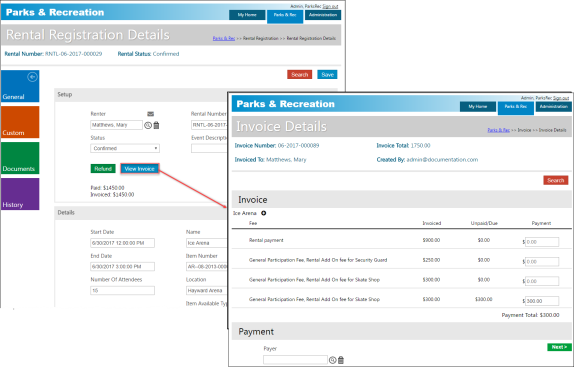
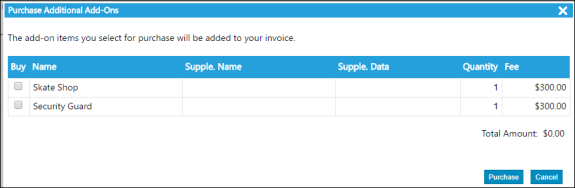
If add-on items are available for an invoiced item, click the expand button (+) for the item to view the add-on selections. You may process the purchase of add-on items directly from this page.